
Data sharing with a Globus Guest Collection#
Globus Guest Collections (formerly known as “Shared Endpoints”) enable PetaLibrary customers to share a given folder in a PetaLibrary active or archive allocation with anyone – regardless of whether they have a CURC account – simply by using their email address. Guest collections are a great way to share data with external collaborators. Below we outline the steps to share data from your PetaLibrary allocation on CURC.
Note
Additional information on Guest Collections is available at docs.globus.org.
Step 1: Log into the Globus Web App#
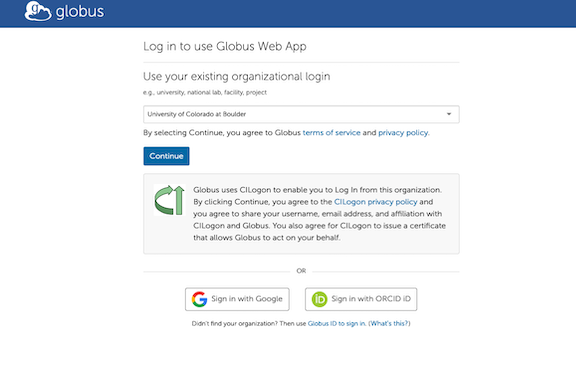
Visit https://app.globus.org and log in with your institutional credentials (University of Colorado Boulder in this example).
Step 2: Open the CURC endpoint#
All of your files on CU Research Computing, including those in your PetaLibrary allocation, can be accessed in Globus by opening the CURC endpoint (also known as a “collection”). In the Collection Search box, enter: “CU Boulder Research Computing”.
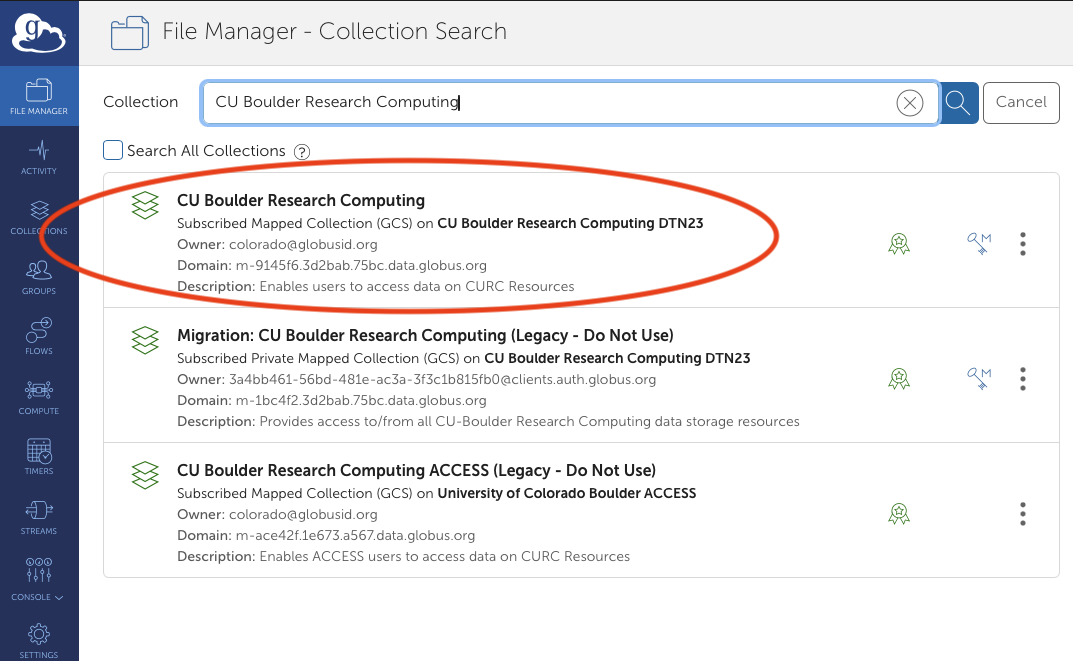
There may be several choices that meet this search criterion. Select the one that is associated with “DTN23” and is not marked as “Legacy”. Once you have selected the endpoint, you’ll be asked to log in using your CURC Credentials by selecting Authenticate.
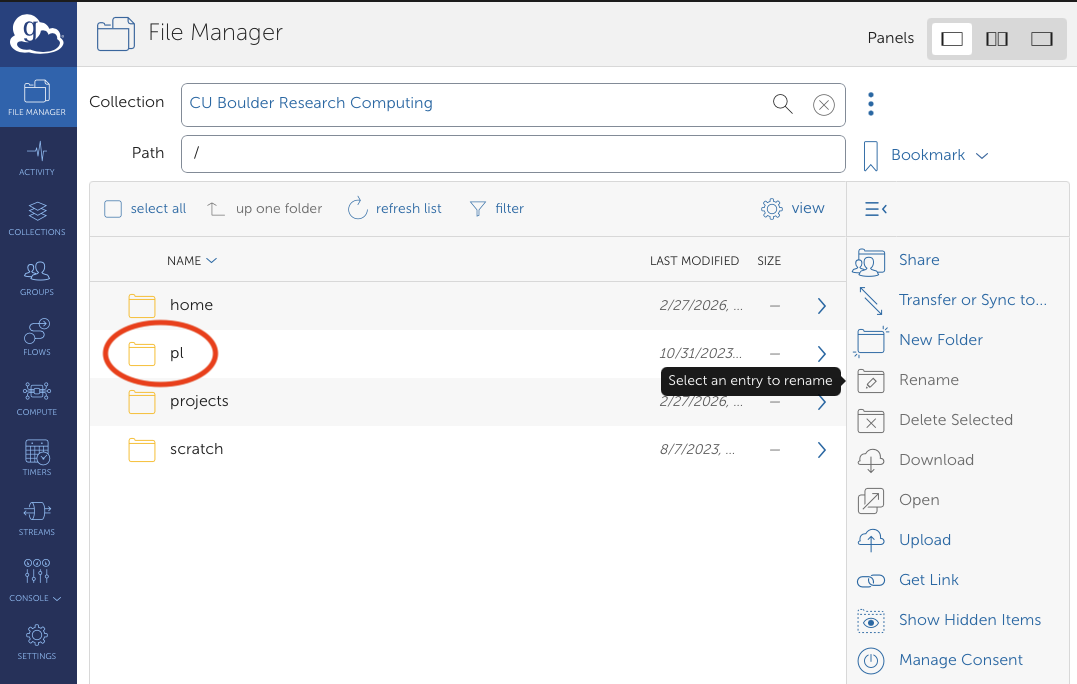
Once authenticated, you will see a list of filesystems available to you (/home, /pl, /projects, /scratch). To access Petalibrary select /pl and proceed to your allocation.
Step 3: Navigate to the folder you would like to share#
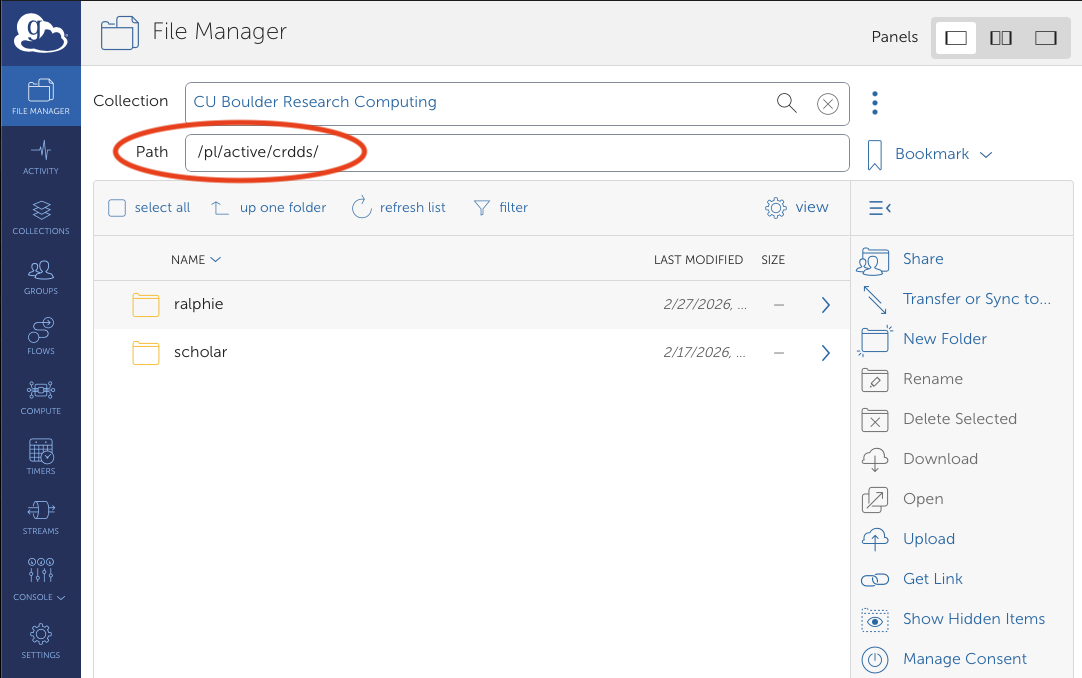
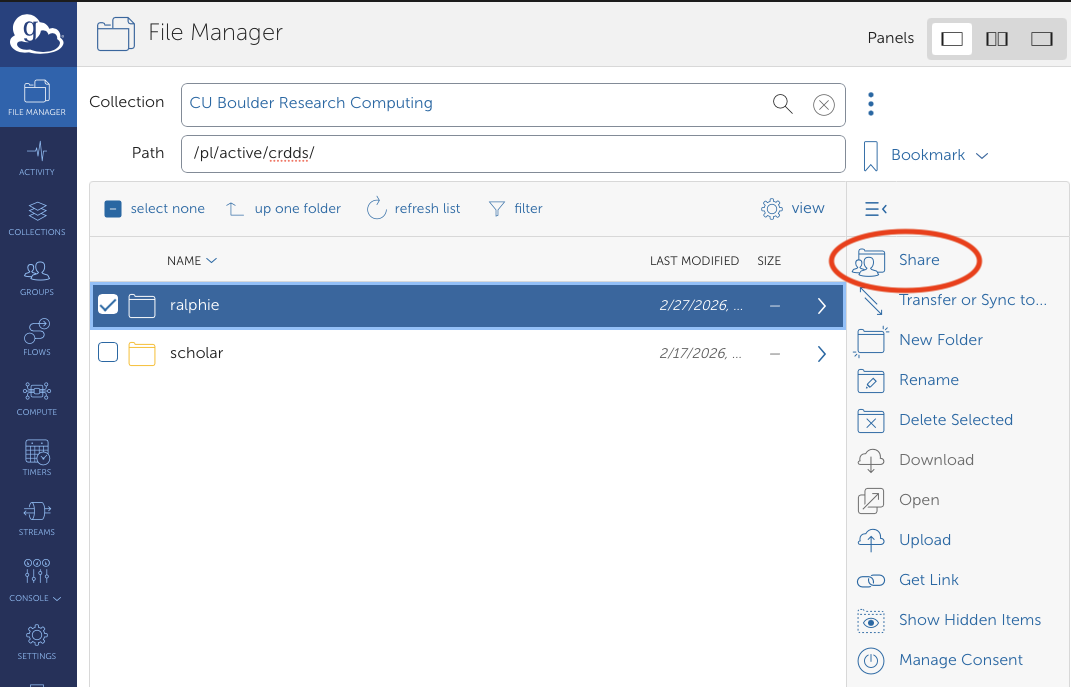
Within your allocation, navigate the the folder that contains the folder you would like to share. In this example, we navigate to /pl/active/crdds, which contains the folder ralphie we would like to share.
Important
Sharing is available for folders. Individual files can only be shared by sharing the folder that contains them. Your ability to create a Guest Collection depends on your permissions for the folder. For example, if you have read-only permissions to a folder, you can create a read-only Guest Collection for it (but not a Guest Collection with write permissions).
Step 4: Create a Guest Collection#
Now highlight the folder you would like to share by single clicking on the folder name. In this example we highlight ralphie, and then select Share.
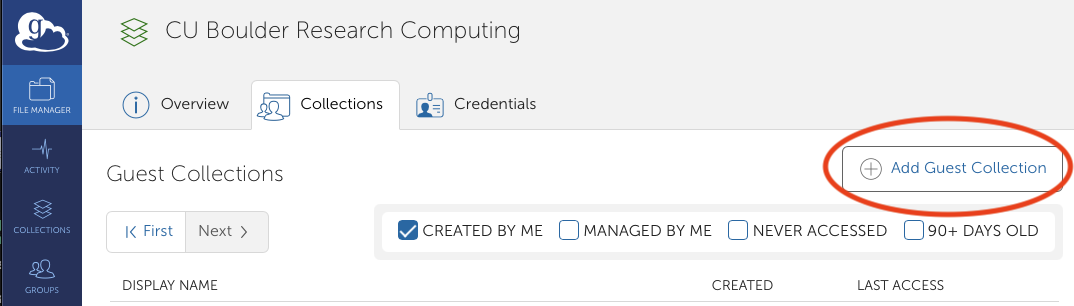
Next, select the Add Guest Collection button.
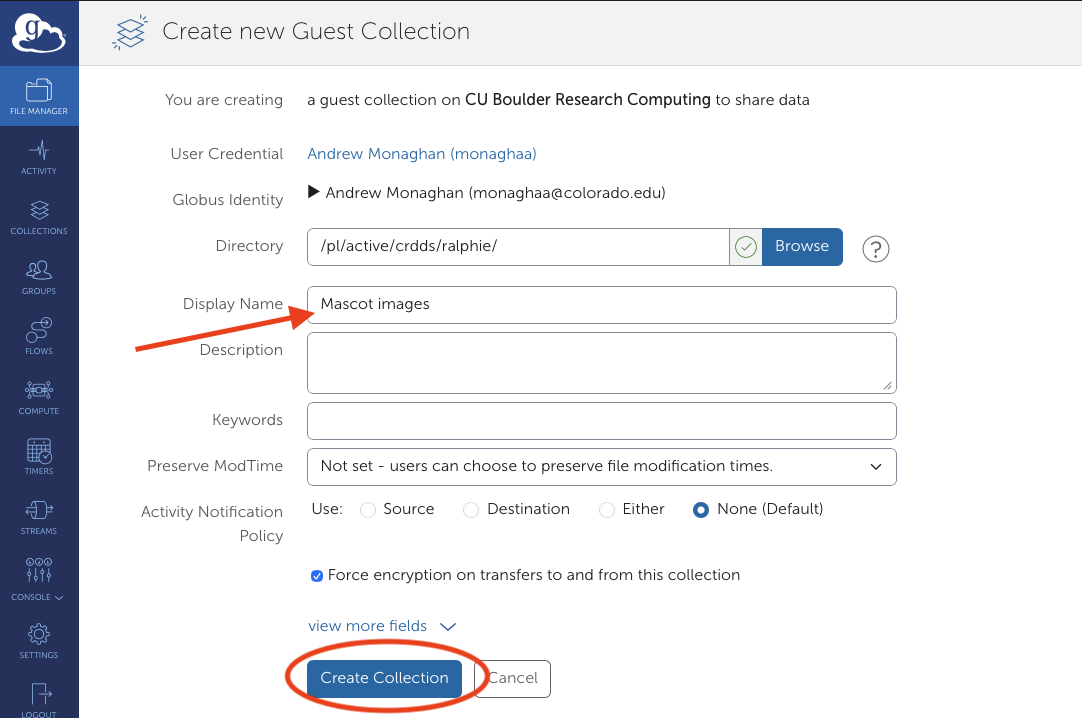
Provide a name for the Guest Collection. In this example we choose Mascot Images, then select the Create Collection button.
Note
If it is not already highlighted, check the box next to Force encryption on transfers to and from this collection prior to selecting the Create Collection button.
Warning
Guest Collections are only valid as long as the folder they point to still exists. If you delete the folder associated with the Guest Collection, it will be invalid.
Step 5: Add permissions to share the Guest Collection#
After creating the collection, you’ll be taken to the Permissions tab. The Guest collection is already shared with you as well as the parent collection, “CU Boulder Research Computing”. Now select the button for Add Permissions - Share With to share with an additional collaborator.
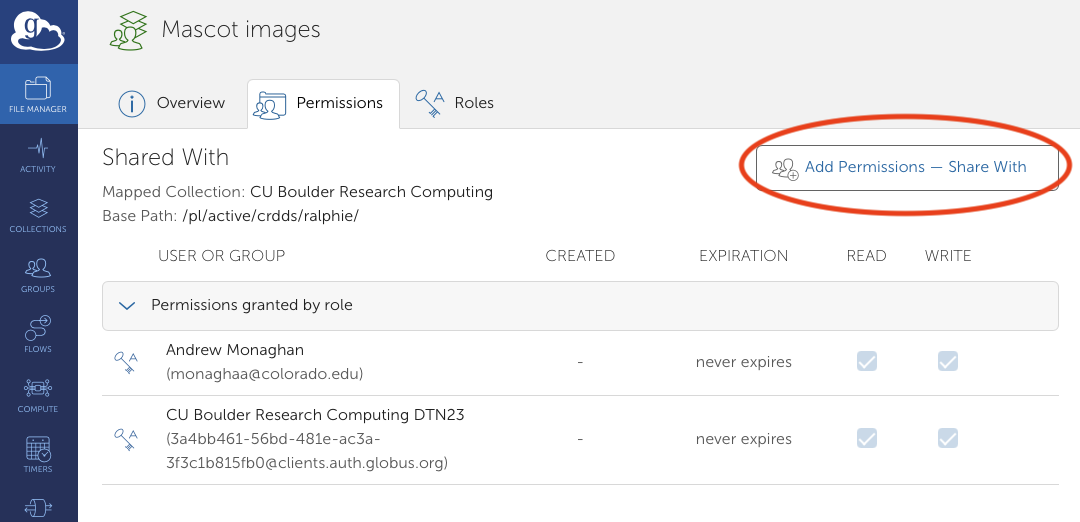
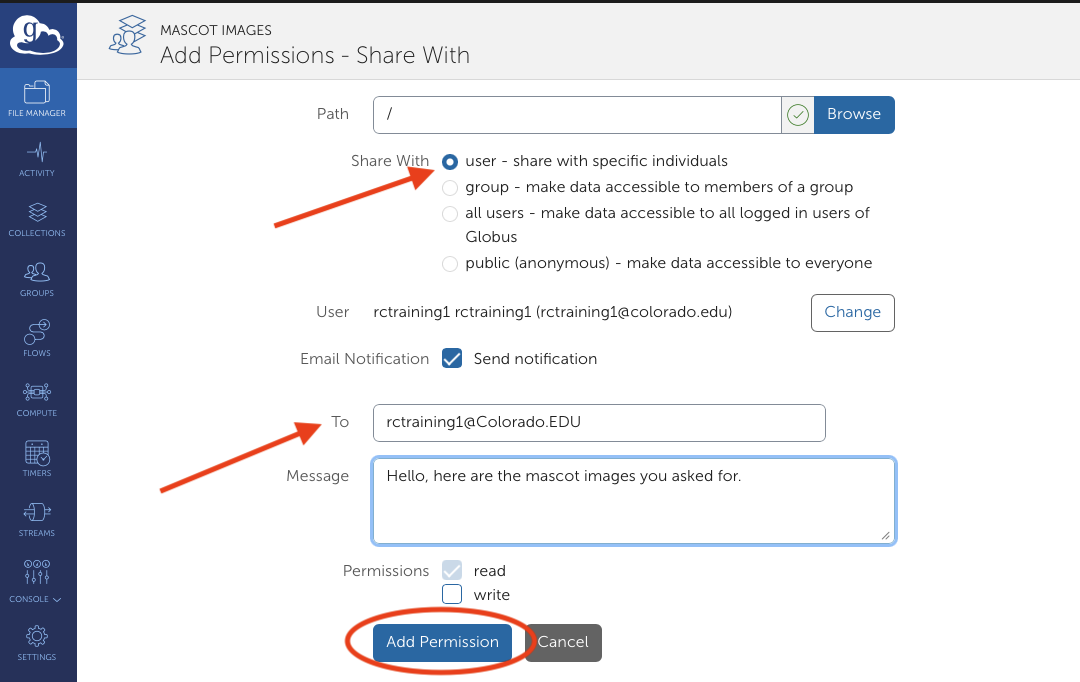
Now you can “Share With” a user, a group, or everyone on Globus. It is most common to share data with a single person, so in this example we select user and enter their email address in the To field (rctraining1@colorado.edu here), as well as a brief Message indicating what we are sharing. Complete this step by selecting the Add Permission button.
Warning
The default sharing mode is read-only. Granting write access to a folder allows users to modify and delete files and folders within the folder.
Important
The person you are sharing with must already have a Globus ID. Globus IDs are free and available to anyone. Many organizations are already part of Globus which enables you to login via your institutional credentials. To check if your organization is part of Globus, go to the Globus login page and search for your institution in the dropdown list. If not, you (or your collaborator) can create a new Globus ID.
Step 6: Confirm the email has been received#
After receiving the email notification, your colleague can click on the link to log into Globus and access the guest collection.