
AWS - View Billing Data#
Note
For all billing periods beginning after 6/30/2025, you should refer directly to AWS Cost Explorer and your invoices in the CU Marketplace. CloudCheckr is no longer used for billing information.
How AWS billing works#
Four Points Technology (FPT) is our AWS reseller. They invoice you for your AWS usage monthly via the CU Marketplace.
Discounts#
FPT provides us with the following discounts:
Contract Discount on most AWS resources, excluding AWS Marketplace, S3 Glacier Deep Archive, and AWS Storage Deep Archive charges
Egress waiver for some traffic (contact us for additional details)
Important
Due to this discount, what you see in the default AWS Cost Explorer will not match what’s on your invoices. See below for how to calculate your actual costs from AWS Cost Explorer.
Viewing your invoices#
Your invoices and associated purchase orders (PO) can be viewed in the CU Marketplace.
Note
FPT combines the charges for all AWS accounts paid by the same PO into a single invoice for each month.
Calculating your costs with AWS Cost Explorer#
Here’s how to use AWS Cost Explorer to represent the charges you will see on an invoice from FPT. We’ll use an example from July 2025.
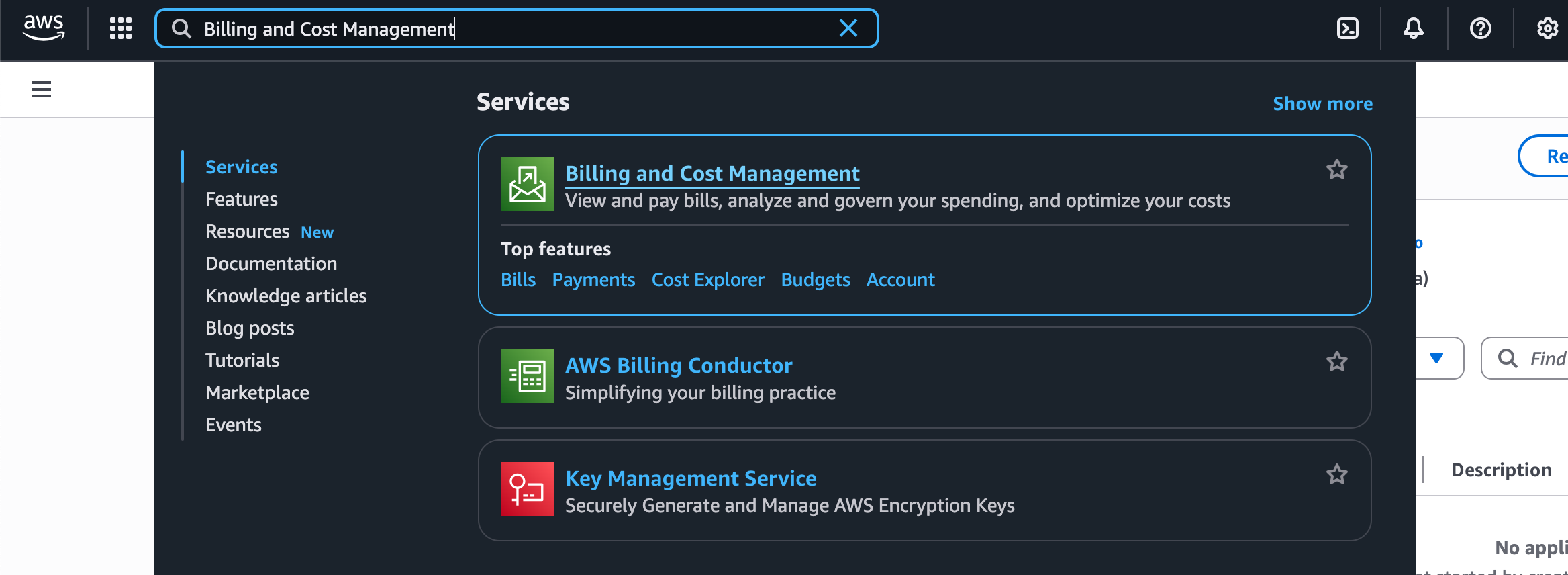
Log into your AWS account and navigate to the Billing and Cost Management service. Choose Cost Explorer from the menu on the left.
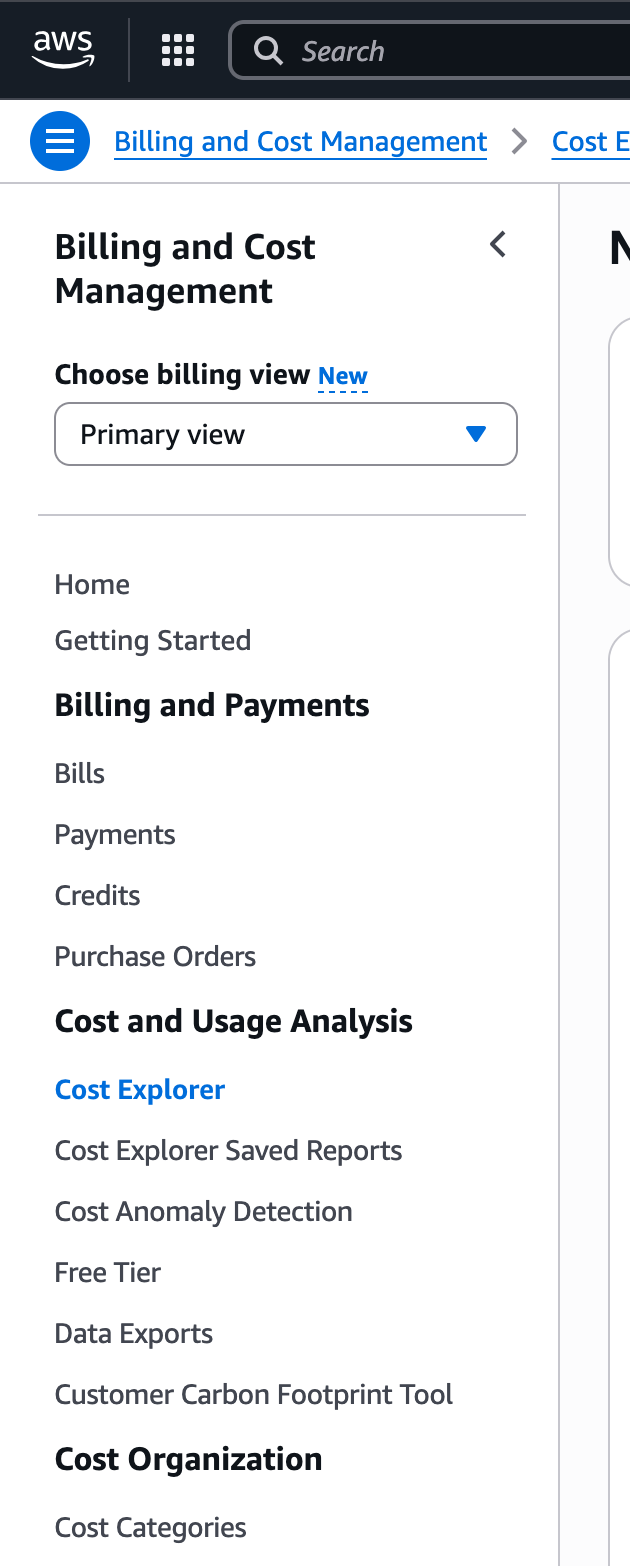
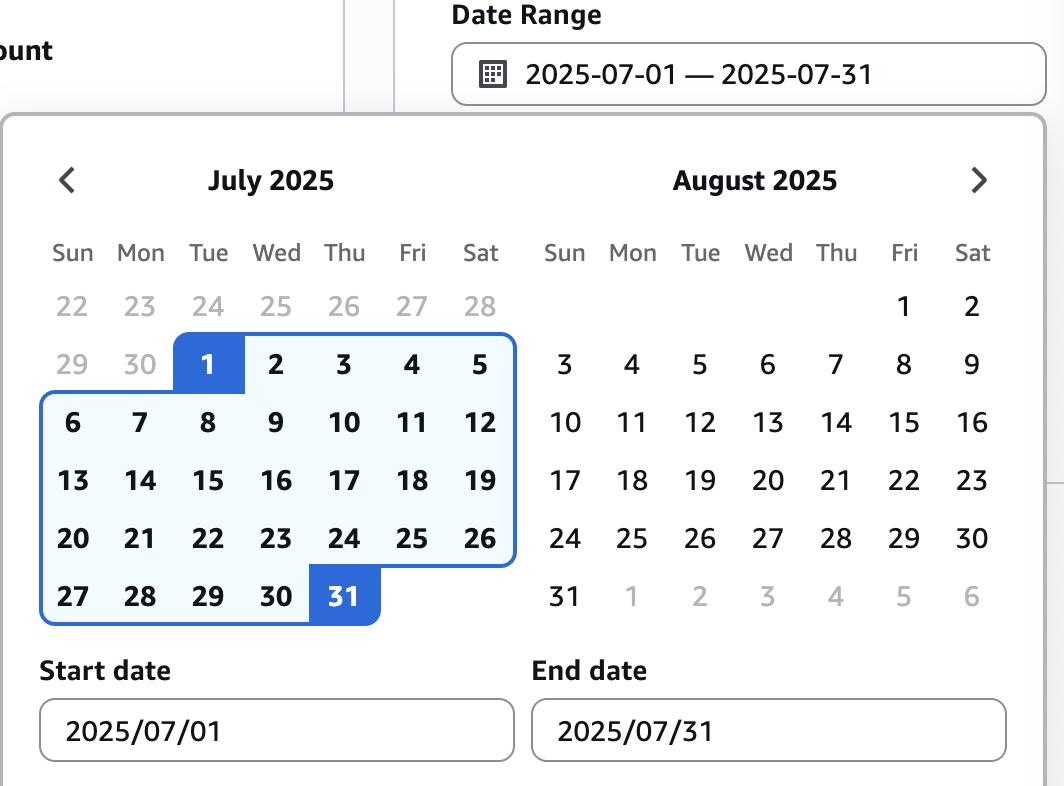
Filter on the billing month.
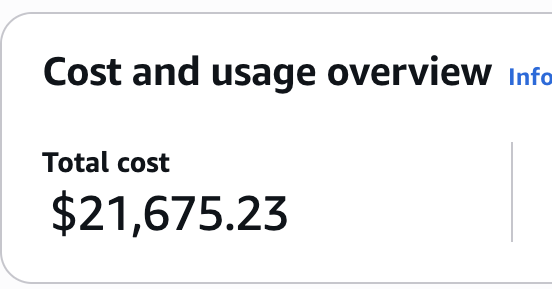
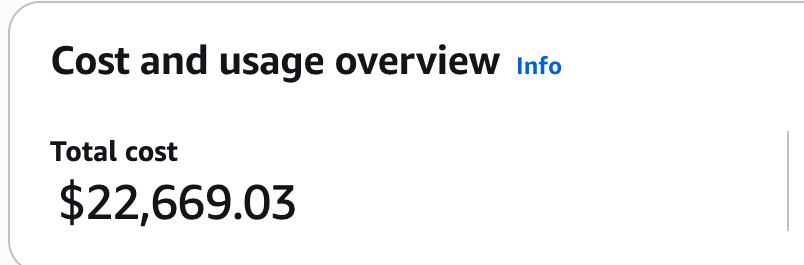
You’ll see the unfiltered cost at the top of the report. This is NOT what you will be billed!
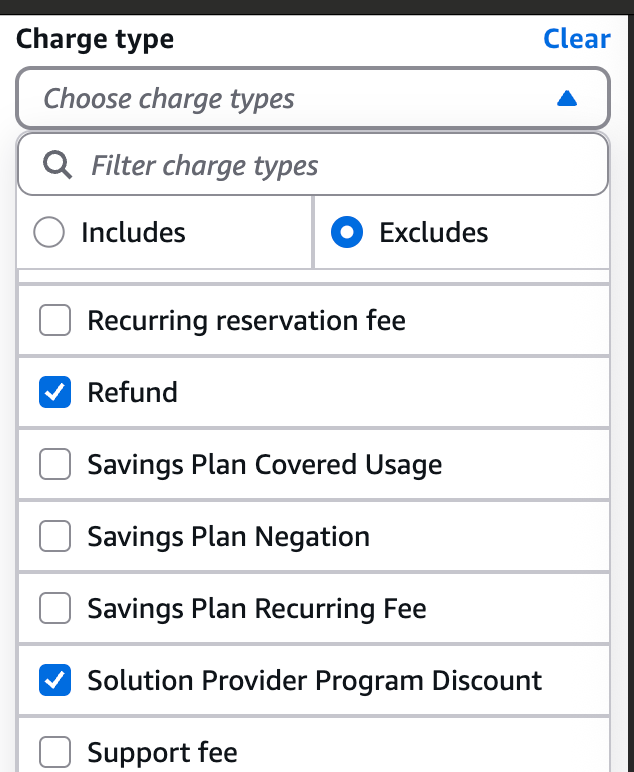
Remove automatically applied refunds by adding the filter
Charge Type → Excludes → Refund, Enterprise Discount Program Discount and Solutions Provider Program DiscountunderMore Filters.Enterprise Discount Program Discountmay not be present.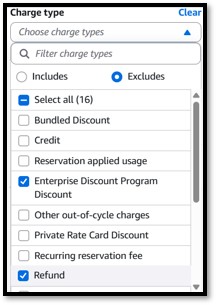
Now you’ll see the raw costs for that billing period.
Add a filter to remove AWS Marketplace costs. Set
Billing Entity → Excludes → AWS Marketplace.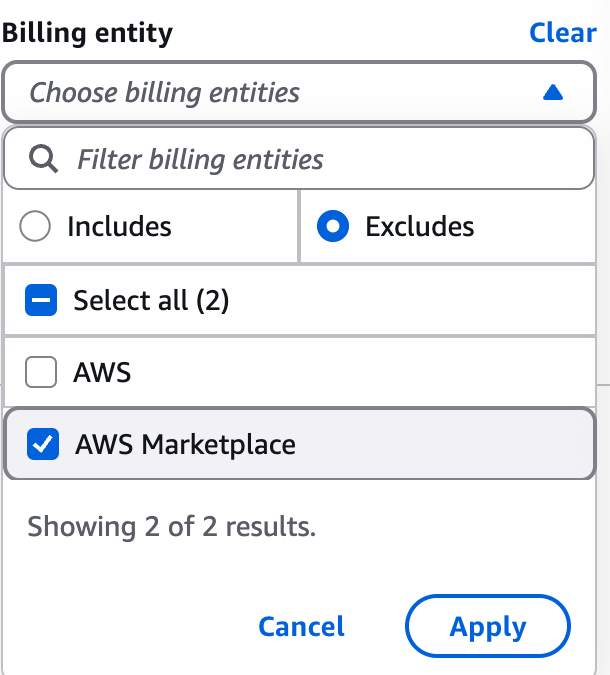
Add a filter to remove S3: Storage - Glacier Deep Archive. Set
Usage type group → Excludes → S3: Storage - Glacier Deep Archive.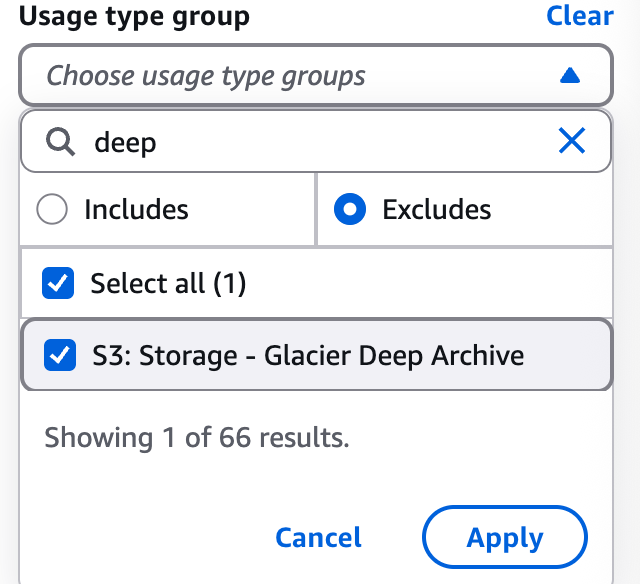
Add a filter to remove OCBLateFee and Support (Enterprise). Set
Service-> Excludes → OCBLateFee and Support (Enterprise).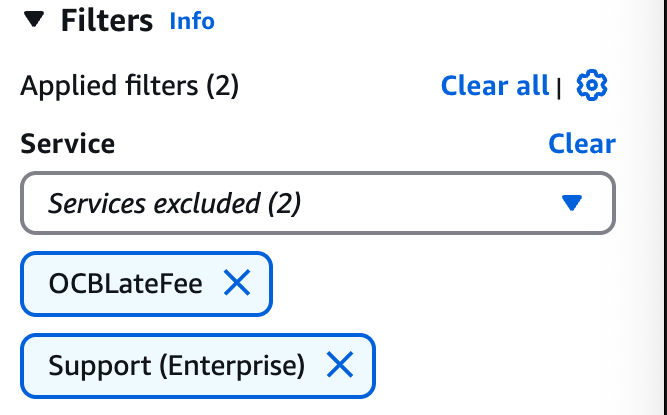
Add a filter to remove all items matching “Xfer-Out-Bytes” and “Transfer-Out-Bytes”. Set
Usage type → Excludes → all items matching “Xfer-Out-Bytes” and “Transfer-Out-Bytes”.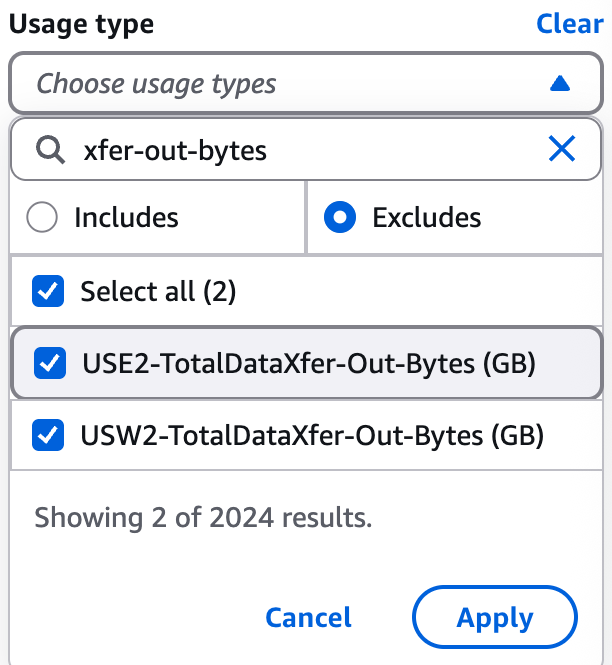
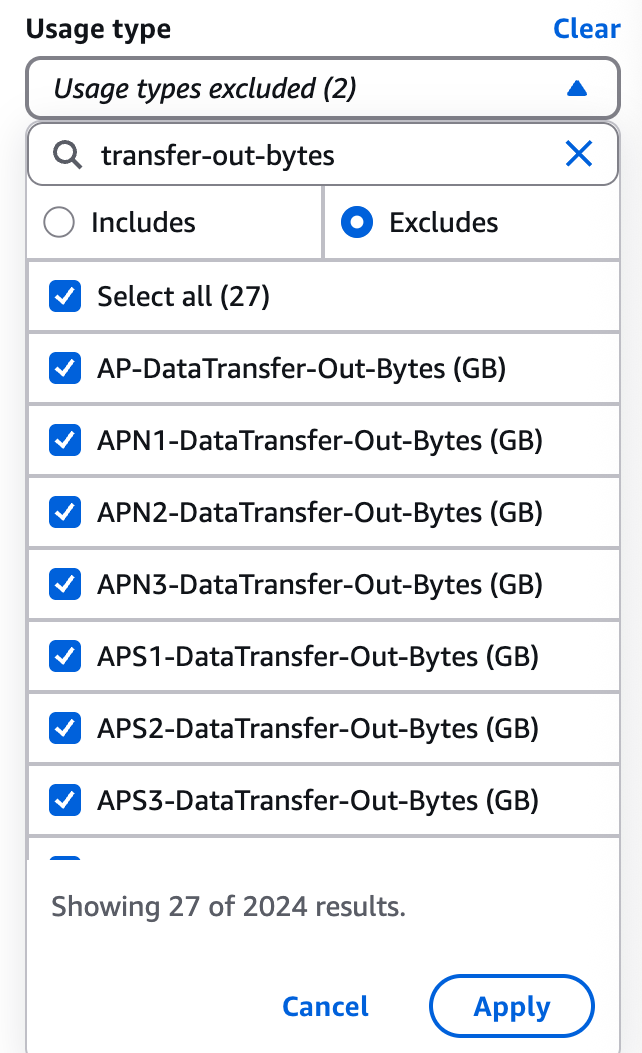
Now your total will show the AWS resources eligible for discount.
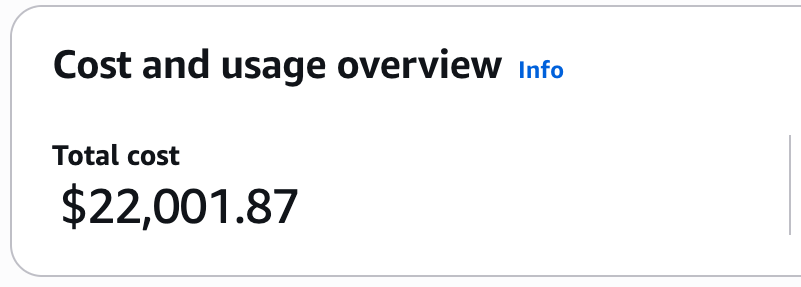
Manually apply the discount in the contract (here we are considering a 1%) on the eligible costs from the previous step. In this example, the total discounted AWS resource costs are $1,944.62.
\[Discounted AWS Resource Costs = Discount Eligible Costs \times (100\% - 1\%)\]\[$21,781.85 = $22,001.87 \times 0.99\]Note
Note this number as
Discounted AWS Resource Costsfor future use below.Next we need to add AWS Marketplace and Deep Archive costs that are NOT eligible for discounts. Remove both the
Billing EntityandUsage type groupfilters. Your total should again show the raw costs ($3,381.06).Important
Do not remove the
Charge Typefilter.Determine AWS Marketplace costs. Set
Billing Entity → Includes → AWS Marketplace.
Your total should now show just AWS Marketplace costs.
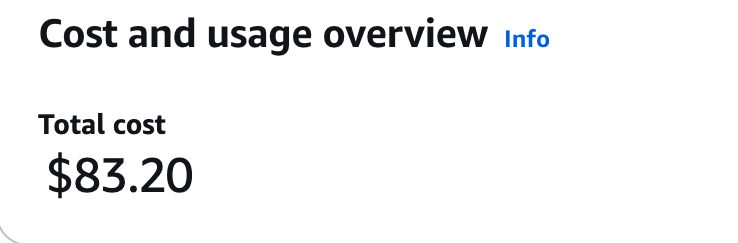
Note
Note this number as
AWS Marketplace Costsfor future use below.Remove the
Billing Entityfilter.Determine Deep Archive costs. Add a filter for
Usage Type group → Includes → S3: Storage - Glacier Deep Archive.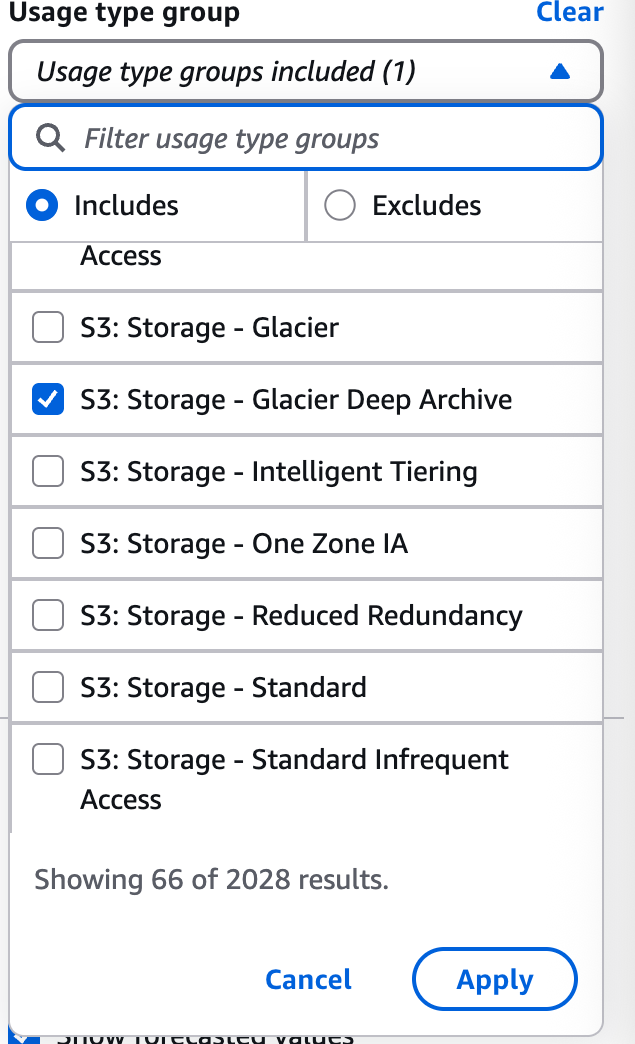
You’ll see the total of just the Deep Archive costs.

Note
Note this number as
AWS Deep Archive Costsfor future use below.Sum the
Discounted AWS Resource Costs,AWS Marketplace Costs, andAWS Deep Archive Costs. This is the total charge for this account,Account Total.\[Account Total = Discounted AWS Resource Costs + AWS Marketplace Costs + AWS Deep Archive Costs\]\[$21,917.67 = $21,781.85 + $83.20 + $52.62\]Repeat this process for each of your accounts. The total across all accounts that use the same PO should match the invoice you receive in the CU Marketplace.
\[Invoice Total = \sum_{i \in Accounts} Account Total_i\]
Note
If you have any questions about your bill or need help calculating your costs, please contact us.